

Screens
A Screen is one unit of content in a Device's Rotation. Screens play in their Order, which you rearrange by drag and drop, and the Rotation advances one step on every poll, skipping any Screen that is not eligible right now.
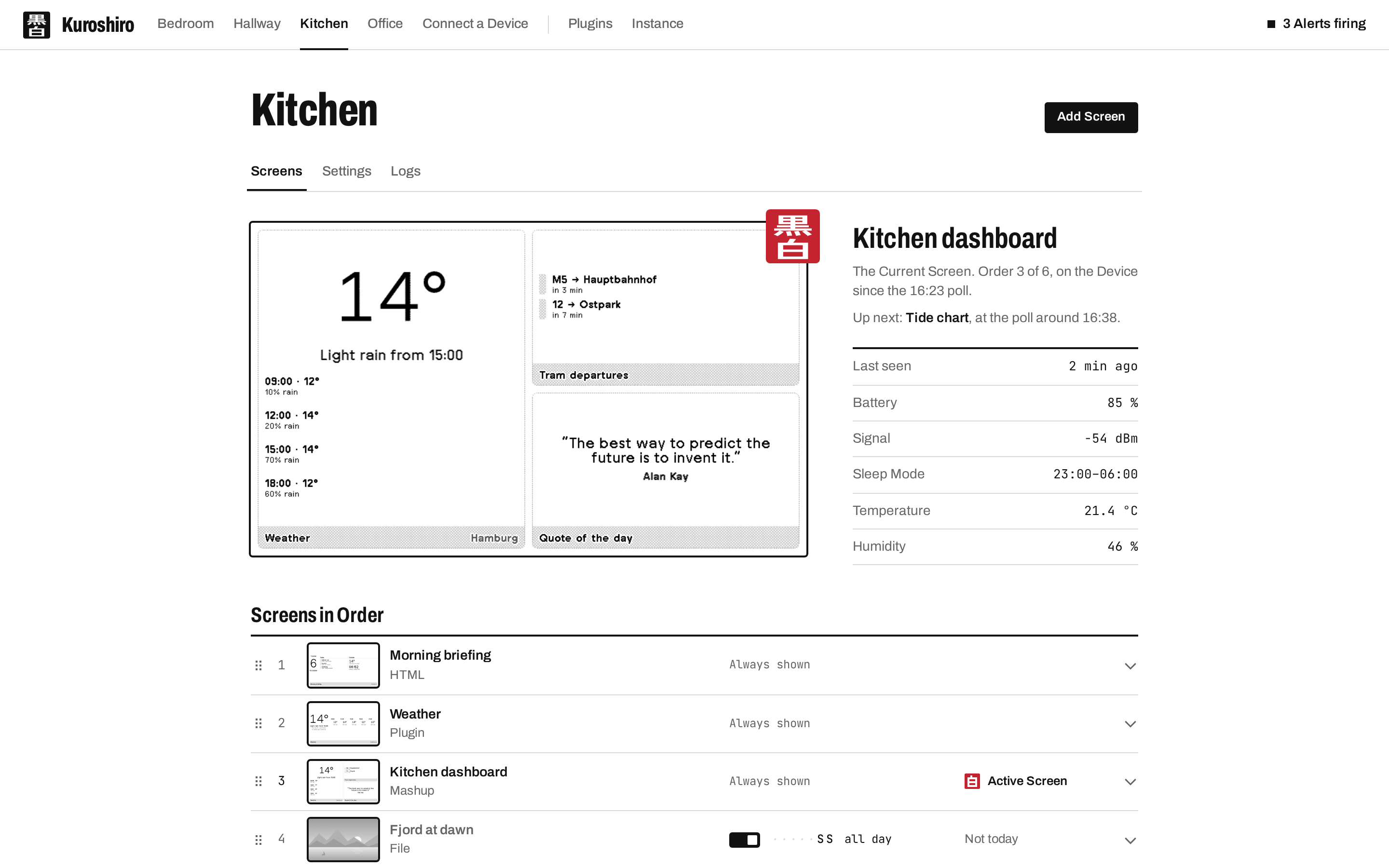
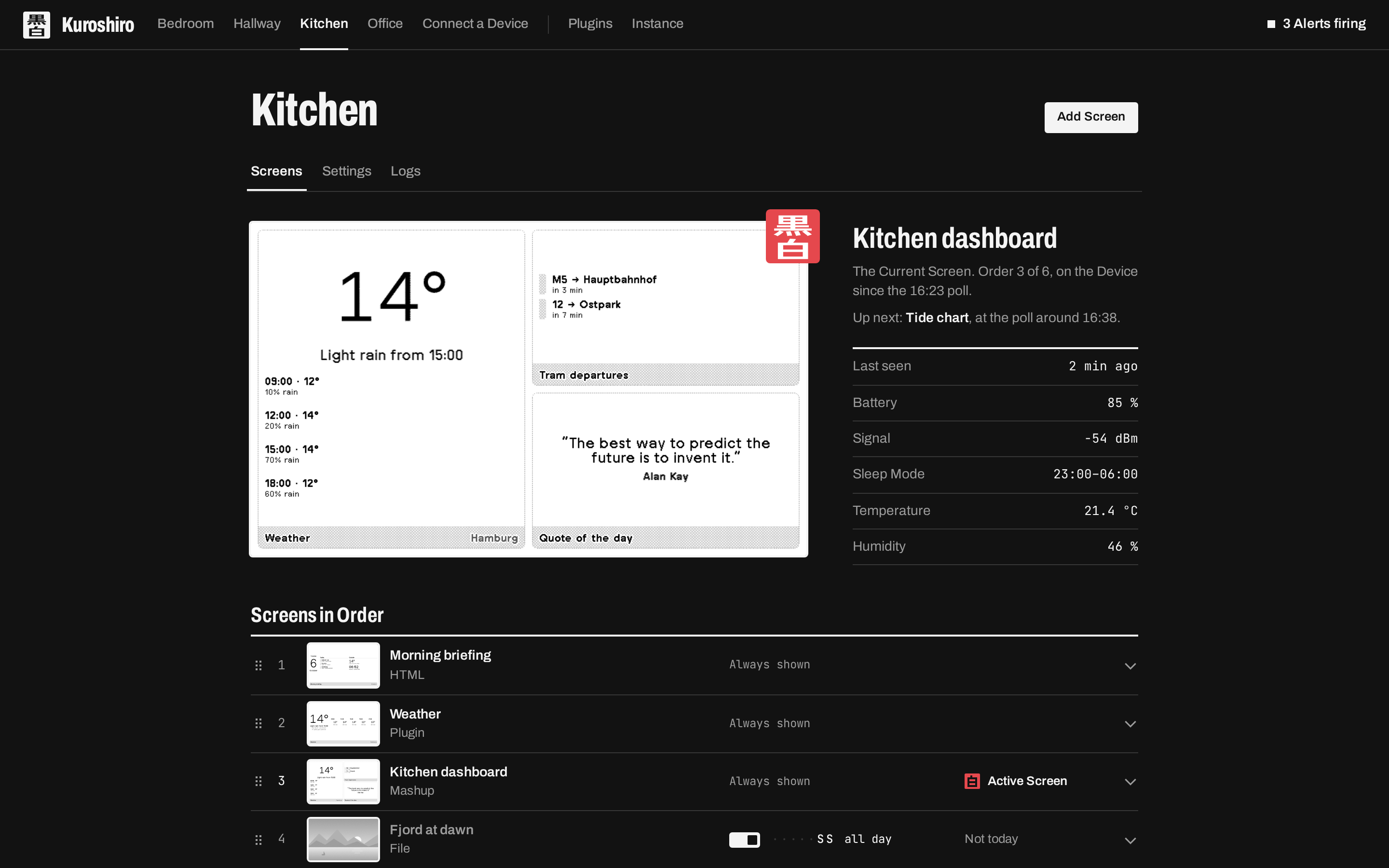
Images are generated for the Device's Device Model (panel size, colour depth, rotation) and dithered to its Palette: 1-bit, 4 or 16 greys, or the colours of a colour panel.
Kinds of Screen
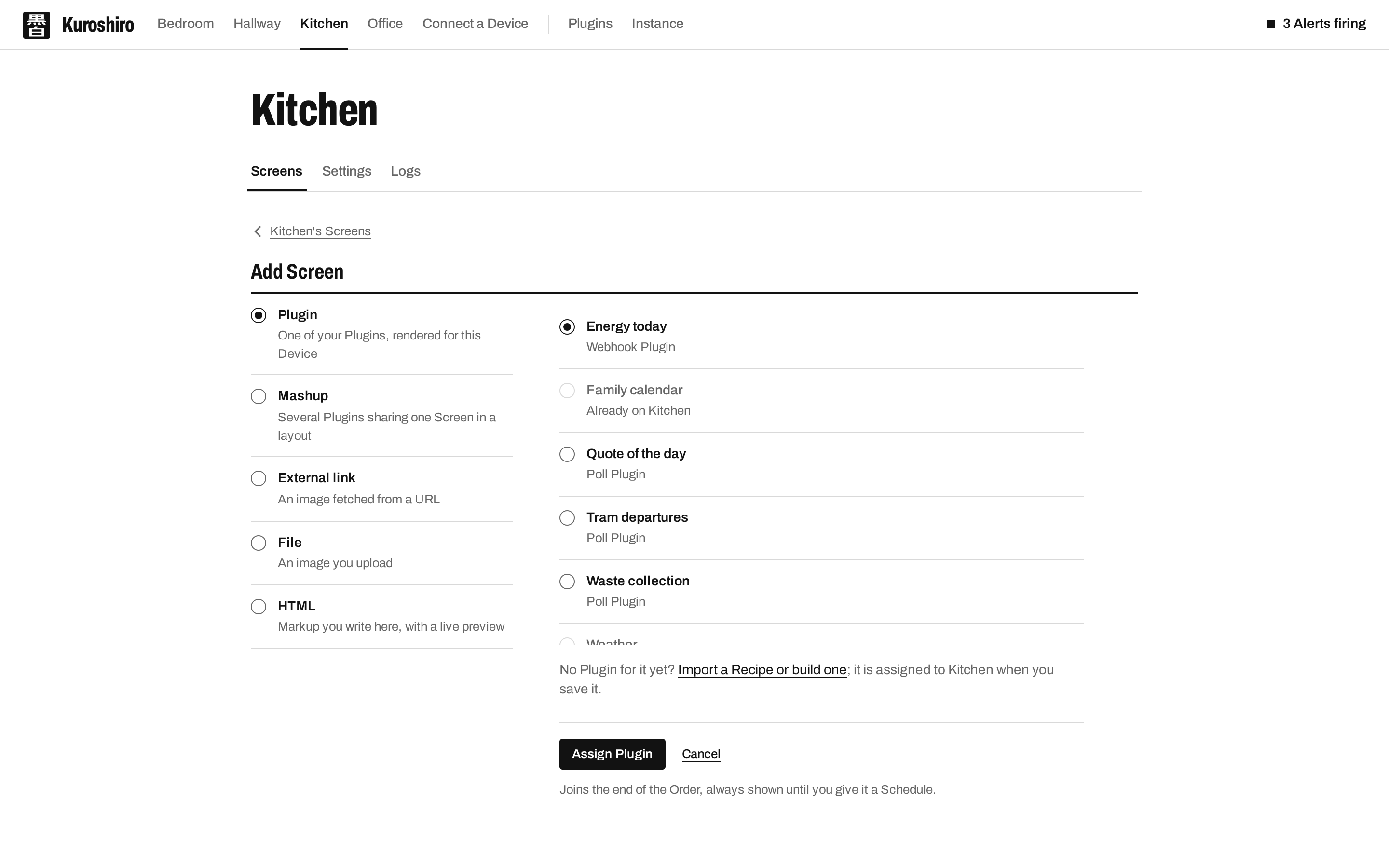
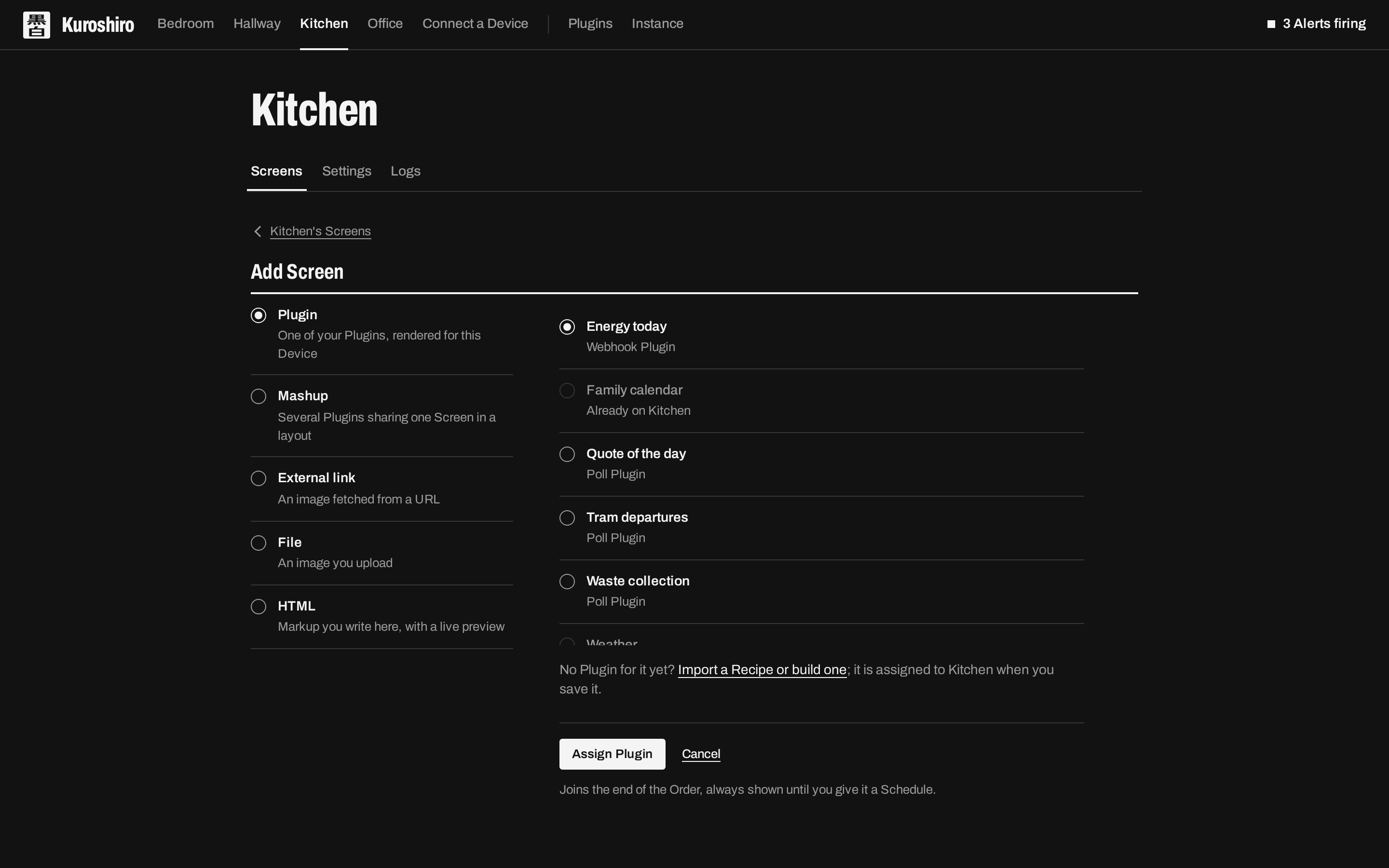
- Upload: Kuroshiro fits a file onto the Device's panel with ImageMagick and dithers it. The original is kept, so switching the Device's model or Palette regenerates the image from the source.
- Link: give a URL and Kuroshiro fetches, converts and serves it. Cache it for speed, or fetch fresh every time.
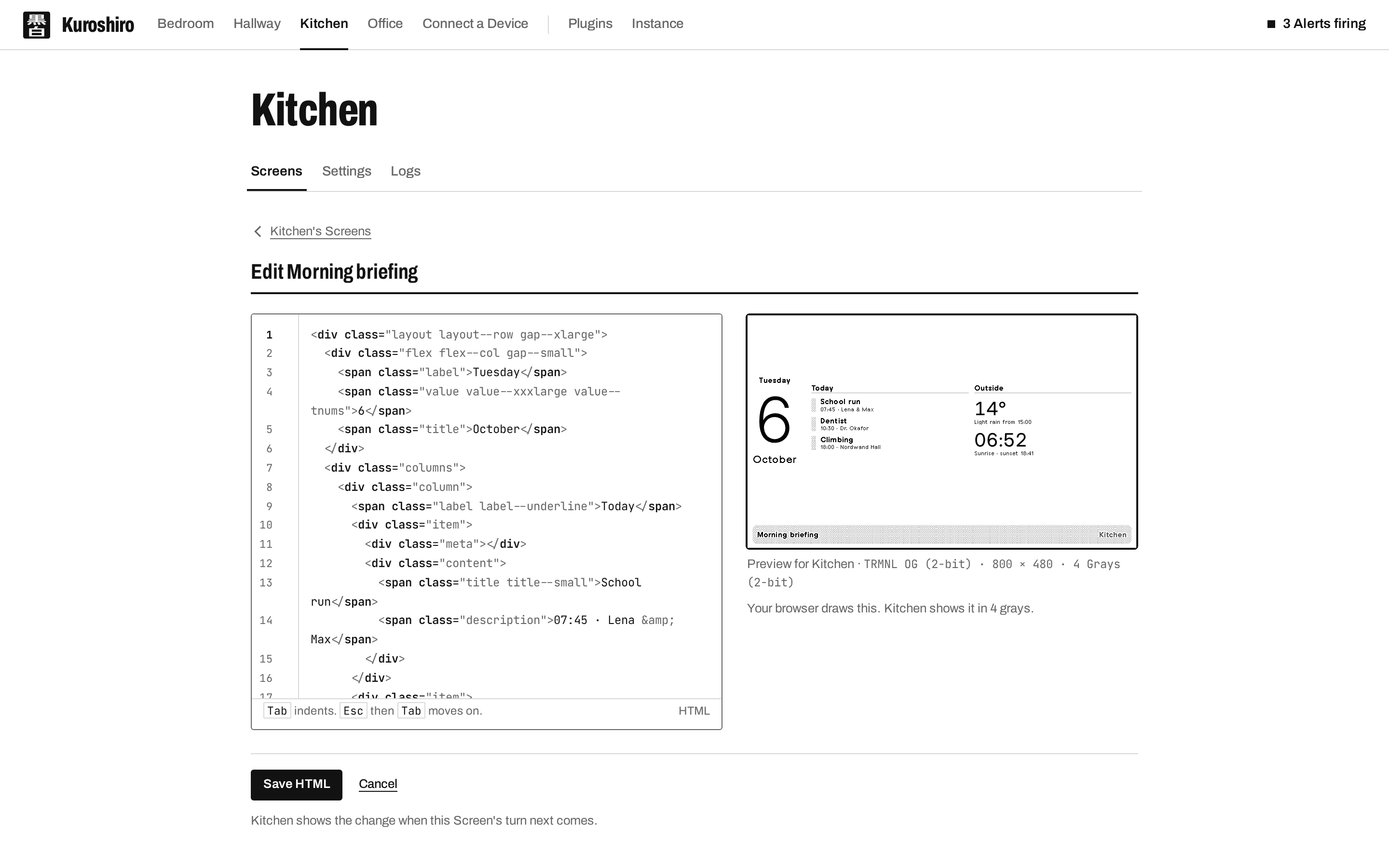
- HTML: write raw HTML with the TRMNL framework at hand.
- Plugin: the rendered output of a Plugin.
- Mashup: several Plugins combined on one Screen.
HTML editor
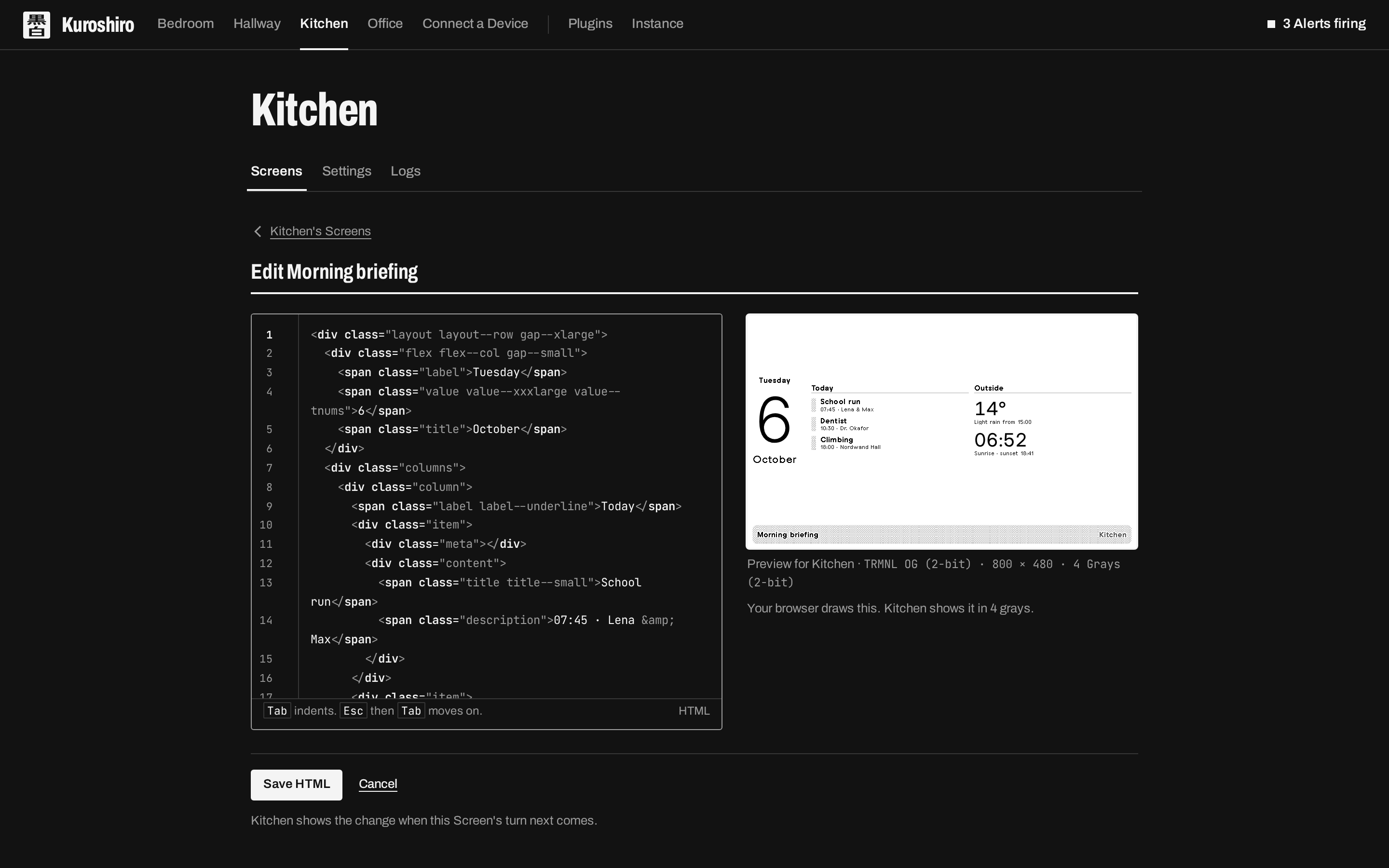
The HTML editor previews the Screen for its Device as you type.
Mashups
A Mashup combines multiple Plugin outputs into one Screen using one of 7 layouts: 1L×1R, 1T×1B, 1L×2R, 2L×1R, 2T×1B, 1T×2B and 2×2. Mashups use the official TRMNL CSS framework. If one Plugin fails to render, an error placeholder takes its slot and the rest of the Mashup still displays.
Schedules
Attach a Schedule to any Screen, Mashups included, to gate when it may become the Active Screen: a weekday selection, a daily time-of-day window (which may cross midnight), an optional date range, and its own on/off switch. The Rotation simply skips Screens that are not eligible; a Schedule never reorders anything, and a Screen without one is always eligible.
A rendered page can also opt out by itself: Plugin, HTML and Mashup Screens may set TRMNL's skip or hold flags, and Kuroshiro honours them as Render Signals.
Each Screen shows why it is or is not playing right now: Active Screen, Up next, Schedule off, Not today, Not at this hour, or Skipping.